
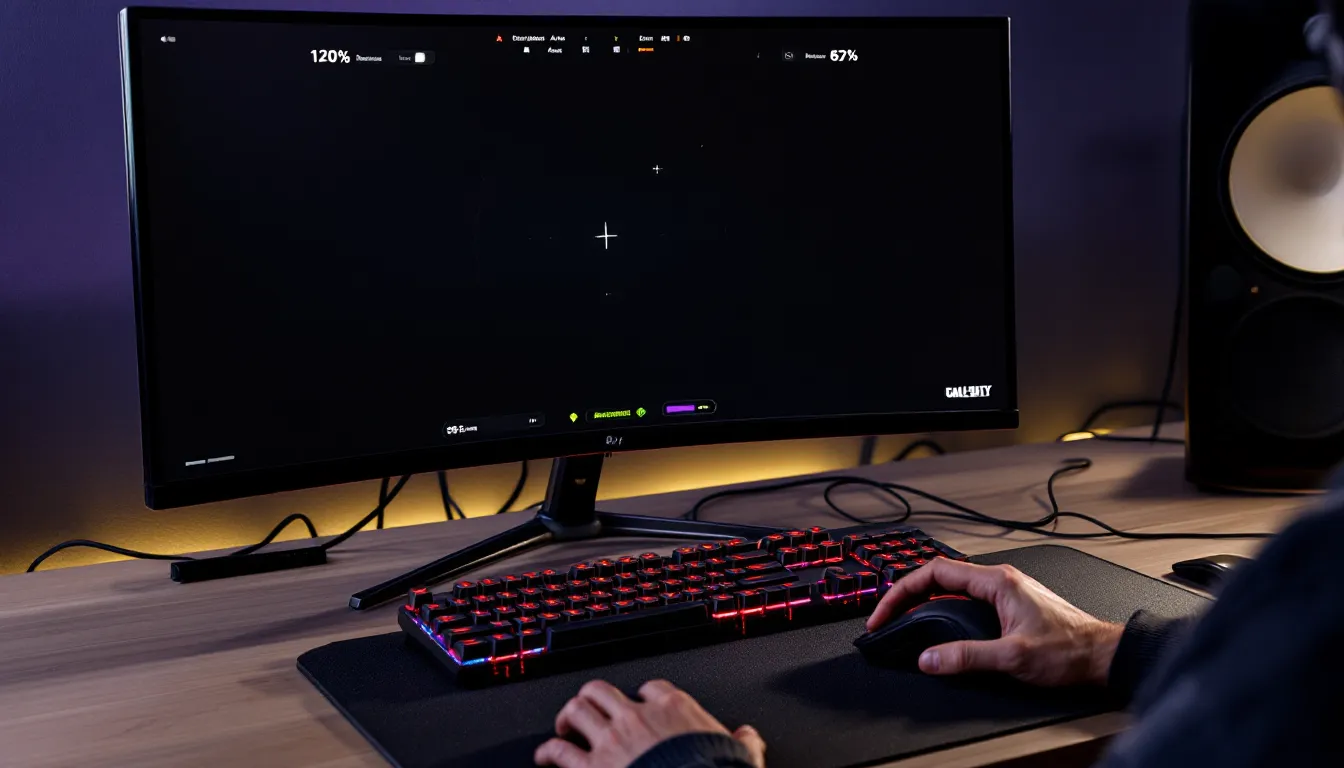
Your HUD is the control center between your eyes and your trigger finger. Get it wrong, and you’re fighting blind in crucial gunfights. Get it right, and you’ll spot enemies faster, track ammo more efficiently, and maintain situational awareness without breaking visual focus on the battlefield. The Call of Duty HUD has evolved significantly in recent years, offering unprecedented customization across all game modes, from fast-paced multiplayer to survival-horror Zombies runs. Whether you’re grinding ranked play or pushing for competitive excellence, understanding how to configure your HUD isn’t just a quality-of-life improvement: it’s a competitive advantage. This guide breaks down every element, from minimap positioning to crosshair opacity, so you can build a display setup that fits your playstyle and hardwired gaming instincts.
Key Takeaways
- Your Call of Duty HUD is a competitive tool, not a cosmetic feature—minimap positioning, crosshair opacity, and element placement directly impact reaction time and gunfight success.
- Optimal Call of Duty HUD configuration prioritizes a clear center screen for target acquisition while pushing supporting information (ammo counter, killstreaks) to the periphery for minimal visual clutter.
- Customize opacity between 80–100% depending on map lighting; a fully opaque HUD can obscure enemies in dark corners, while lower opacity preserves critical sight lines during intense combat.
- The minimap should be positioned in the upper left corner at 120% scale for most players, as this location doesn’t interfere with where enemy heads typically appear on screen.
- Avoid copying pro player HUD settings directly to your setup—instead, learn their logic of minimizing visual noise and maximizing the gunfight zone, then iterate based on your monitor size and playstyle.
- Test HUD changes systematically by adjusting one variable per session across multiple matches, allowing your brain time to adapt before evaluating whether the change improves performance.
What Is The Call Of Duty HUD And Why It Matters
The Call of Duty HUD (heads-up display) is the on-screen information layer that shows your health, ammo, minimap, killstreaks, objectives, and weapon status in real time. It’s your direct connection to game state without forcing you to open menus or look away from the action.
Why does it matter? Because a cluttered or poorly positioned HUD costs you milliseconds, and milliseconds cost you gunfights. A professional player might have their minimap positioned differently than a casual player, or adjust crosshair opacity to reduce visual noise. These aren’t cosmetic tweaks: they directly impact visual clarity and reaction time.
The modern Call of Duty HUD is modular. You’re not locked into a single default layout anymore. You can hide, reposition, resize, and adjust the opacity of nearly every element. This flexibility is a relatively recent addition to the franchise, and it’s one of the most powerful tools for personalizing your gameplay experience.
Across PC, PlayStation 5, Xbox Series X
|
S, and console generations, HUD customization options remain fairly consistent, though some platform-specific graphics settings may affect visual clarity. The fundamentals stay the same: know what to display, where to display it, and how prominent it should be.
Understanding HUD Customization Basics
Most modern Call of Duty titles access HUD customization through the Settings menu under Graphics or Display options. The exact path varies slightly depending on whether you’re on PC (Steam, Battle.net) or console, but the principle is universal: jump into Display Settings and look for HUD customization tabs.
You’ll typically find toggles for individual HUD elements (minimap, compass, objective marker, weapon display, etc.), along with sliders for scale and opacity. The scale slider controls the overall size, smaller HUDs reduce visual clutter but can be harder to read quickly, while larger HUDs take up more screen real estate.
Opacity is your friend here. A fully opaque HUD (100%) is visible at all times, but it can obscure enemies in dark corners or subtle sightlines. Many competitive players run 80–95% opacity to maintain visibility while preserving clean sight lines. Some players drop critical elements like the killstreak notification to ultra-low opacity (30–40%) since they know when they’ve earned rewards.
The key insight: there’s no universal “best” HUD. A console player might prefer a larger minimap since they’re sitting farther from the screen, while a competitive PC player might want everything smaller and positioned in the upper corners to maximize visibility of the center screen where enemy heads appear.
Essential HUD Elements Explained
Minimap And Radar Configuration
The minimap is arguably the most important HUD element after your crosshair. It shows teammate positions, enemy locations (if they appear on radar), objectives, and map layout in real time. Poor minimap positioning can literally blind you to flanks and rotations happening just outside your direct vision.
Most players position the minimap in the upper left or upper right corner, depending on their monitor size and peripheral vision. Competitive players often prefer the upper left on standard 16:9 monitors because it doesn’t interfere with typical sight-line tracking toward the center-right of the screen (where opponents’ heads usually are). Ultra-wide monitor users might position it differently entirely.
The minimap scale should be large enough to read quickly (usually 100–120%) but not so large it dominates the corner. The radar sweep refresh rate varies by game, but you want instant feedback on enemy movements. Some players toggle off the compass (the directional indicator above the minimap) to reduce clutter, especially if they’ve memorized map rotations.
Crosshair And Targeting Reticles
Your crosshair is the single most-stared-at element on your screen. It needs to be visible under all lighting conditions without being visually fatiguing. Call of Duty offers multiple crosshair styles: circle, dot, plus sign, and custom configurations. The ideal choice depends on your weapon type and engagement distance.
For SMGs and close-quarters combat, a small dot or tight plus is typical since you’ll be relying on accuracy at close range. For assault rifles and precision weapons, a more prominent crosshair helps with tracking targets at medium distance. Some players use a static crosshair (doesn’t move when jumping or ads-ing), while others prefer dynamic crosshairs that expand to show weapon bloom.
Crosshair opacity is crucial. A fully opaque crosshair (100%) is sharp and precise but can obscure small details on the battlefield. Many competitive players run 70–85% opacity, especially with bright-colored crosshairs (red, green, white), to maintain visual clarity while keeping the reticle visible. Color choice is personal, white crosshairs stand out on most backgrounds, while green or red might blend better depending on the map’s color palette.
ADS (aim-down-sights) sensitivity is separate from your hip-fire crosshair settings. You can customize the reticle that appears when you scope in, which is especially relevant for sniper rifles and tactical rifles where precision is everything.
Ammo Counter And Weapon Display
The ammo counter shows your current mag and total reserve ammunition. It’s essential information, but its placement matters. If it’s positioned where enemy heads typically appear, you’re adding visual noise to the most critical area of your screen.
Most competitive players move the ammo counter to the lower right or left of the screen, keeping the center and upper-center regions clean for target acquisition. The weapon name display, which shows what gun you’re holding, can also be toggled or repositioned. Some players hide it entirely since they know what they’re carrying.
The killstreak notification (showing your current streak count and reward progress) can be sized down significantly or hidden if you’re an experienced player. You’ll know when you’ve earned a UAV or other reward from the audio cue and on-screen prompt. Reducing the visual prominence of this element keeps the screen cleaner during intense firefights.
Optimal HUD Layouts For Competitive Play
HUD Settings For Multiplayer Dominance
Competitive multiplayer demands a HUD that prioritizes gunfight clarity. Here’s what works for most high-level players:
Minimap: 120% scale, positioned upper left, 100% opacity. The larger size helps track rotations instantly, especially on complex maps like Nuketown or Hijacked. Some pros reduce opacity to 85–90% here if the background is bright.
Crosshair: Small dot or tight plus, 75–85% opacity, centered. A small reticle keeps visual noise minimal and lets you spot enemies peeking around corners without the crosshair blocking sight lines. Color choice varies by personal preference, but white, green, or custom neon colors work well across most maps.
Ammo Counter: Lower right, 80% scale, 100% opacity. Positioning it away from the center keeps your primary sightlines uncluttered. You only glance here between engagements.
Weapon Display: Optional: many pros hide it entirely. If visible, keep it in the lower right at reduced opacity (50–60%) so it’s there if you need it but doesn’t distract.
Killstreak Notification: 50% opacity, lower left or right. You’ll hear audio cues anyway: this just provides confirmation.
Objective Markers: 100% scale, center-top. In objective modes like Search & Destroy or Hardpoint, these markers are critical. Keep them readable and unambiguous.
The philosophy here is simple: maximize the center 30% of your screen for pure gunfighting, and push supporting information to the periphery.
Campaign And Zombies HUD Optimization
Campaign and Zombies have different priorities than multiplayer. In campaign, you’re less concerned about reaction time and more focused on environmental awareness, objective tracking, and health management. Zombies is a hybrid, you need fast threat detection plus resource management.
For Campaign: Increase overall HUD scale to 120–130%, keep opacity at 100%, and make sure objective markers are prominent since story progression often depends on following markers. Health bar visibility is important since you’ll take more sustained fire. Ammo counter should be large and clear since you need to manage resources carefully against wave-based difficulty.
For Zombies: Prioritize your health bar (large, upper left or center), ammo counter (clear, lower right), and the power-up notification system. Many Zombies players actually increase HUD opacity and scale since they’re managing rounds, perks, and resource spawns. The minimap is less critical here since you’re fighting in confined arenas, so you can reduce its scale to 80–90%. Focus on seeing your ammunition and health status instantly: everything else is secondary.
Across both modes, you have more flexibility since engagement distances vary and you’re not in constant 1v1 duels. Use that freedom to make the HUD serve the mode’s actual needs.
Adjusting HUD Scale, Opacity, And Position
HUD scale is the master control that affects everything at once. Most players start at 90–100% and adjust from there. On a 27″ 1440p monitor, 100% scale is usually right. On a 24″ 1080p setup, you might drop to 85% to avoid overwhelming the screen. On ultra-wide monitors (34″+), scaling can go down to 70–80% since the screen real estate is so massive.
Opacity is where you fine-tune visual clarity. The misconception is that 100% opacity is always best, it’s not. High-contrast backgrounds (bright sky, snow maps) can make a fully opaque HUD blend in, while dark areas benefit from high opacity for visibility. Test both 90% and 100% on different maps during casual play: you’ll notice which feels sharper.
Positioning is the most personalized setting. Here’s a framework:
For Standard Monitors (16:9): Minimap upper left or upper right (your choice based on mouse hand), crosshair center, ammo/health lower opposite corner from minimap. This creates a balanced quad where your eyes naturally track during gameplay.
For Ultrawide (21:9): You have more flexibility. Some players stretch HUD elements horizontally to match the screen ratio, while others cluster them tighter. Experiment with moving the minimap further left and ammo further right to take advantage of the extra horizontal space.
For Console/TV Viewing: Position everything at least 5% away from screen edges due to potential overscan issues. Many TVs cut off the outer edges slightly, so account for this if your HUD is getting clipped. Use the safe zone settings in your display options if available.
The real key: adjust one setting at a time, play a full match, then adjust the next. Making five changes simultaneously means you won’t know which one actually improved your performance. Competitive players spend hours dialing in their HUD, it’s not frivolous perfectionism: it’s the foundation of their setup. Players using Call of Duty Modern Warfare Weapons guides often pair weapon selection with HUD tuning since different guns benefit from different crosshair configurations.
Fine-Tuning Your Personal HUD Setup
Pro Player HUD Setups And What You Can Learn
Watching professional Call of Duty players stream reveals recurring patterns in HUD setup. Most competitive pros share similar philosophies even if the exact pixel positions differ:
Minimap Consistency: Nearly all pros position the minimap in the upper left, typically at 100–130% scale. This is so widespread it’s practically universal. The reasoning: the upper left doesn’t interfere with where enemy heads appear (center to upper-right of screen), and it provides constant situational awareness.
Minimal Visual Noise: Pro setups are sparse. Killstreak notifications are dimmed, weapon display is hidden or downsized, and the compass is often disabled entirely. These are confidence moves, they’re experienced enough to not need these visual aids during high-intensity plays.
Customized Crosshairs: Pros typically use smaller, tighter crosshairs than casual players. A competitive player might use a 2–3 pixel dot at 80% opacity, while a casual player might prefer a 6–8 pixel plus sign at 100% opacity. Smaller crosshairs reward accuracy and reduce visual clutter but require better aim to use effectively.
Sensitivity-Matched Setup: High-sens players (8+ on standard scales) often run slightly larger HUD elements since their eyes are moving faster across the screen. Low-sens players (4–6) might go tighter since they’re tracking more deliberately. This isn’t arbitrary, your visual processing speed directly impacts what HUD configuration works best.
You don’t need to copy a pro’s exact HUD. Instead, learn the logic: they prioritize the center screen for gunfighting, minimize distracting elements, and position support information where it doesn’t interfere with aim. Resources like ProSettings catalog pro player configurations across games, including sensitivity, keybinds, and hardware, studying these gives you insight into why professionals make their choices.
Testing And Iterating Your HUD Configuration
Finding your ideal HUD is a process, not a destination. Here’s how to iterate systematically:
Week 1: Establish Baselines. Use a standard competitive HUD (minimap upper left 120%, crosshair small dot 80%, ammo lower right, everything else minimal). Play 10–15 matches and note what feels awkward. Don’t change anything yet, just observe.
Week 2: Adjust One Variable. If the minimap felt too small, increase it to 140% and play another 10 matches. If the crosshair felt too prominent, drop opacity to 70%. Make one change, let your brain adapt (it takes 3–5 matches), then evaluate.
Week 3: Refine Positioning. Once scale and opacity feel right, experiment with positioning. Move the minimap 10% further into the corner, or shift the ammo counter closer to center. Small adjustments compound.
Ongoing: Map-Specific Tweaks. Once you have a baseline, some players fine-tune slightly per map. Bright outdoor maps might benefit from slightly higher crosshair opacity, while dark indoor maps might be fine with lower opacity. This is advanced optimization, but it’s worth noting.
The goal isn’t to obsess over pixels, it’s to reach a setup where your HUD feels invisible. You’re not thinking about where your minimap is: you just see threats instantly. You’re not thinking about your crosshair: your aim is just there. That’s when you know your setup is dialed in. Consider checking current Call of Duty Beta Dates to test new HUD settings before major releases, since new titles sometimes shift default configurations.
Common HUD Mistakes And How To Avoid Them
Mistake 1: Trying to see everything at once. New players maximize the scale of every HUD element, thinking more information is always better. The result is a cluttered, visually exhausting display that actually reduces your ability to spot enemies. Your brain can’t process 8 different on-screen elements during a gunfight. Keep it minimal.
Mistake 2: Matching YouTube streamers exactly. A pro streamer’s HUD is optimized for their 27″ monitor, their specific sensitivity, their playstyle, and their skill level. Copy-pasting their settings onto your 24″ monitor with different sensitivity is a recipe for frustration. Use their HUD as inspiration, then iterate for your setup.
Mistake 3: Centering the minimap. Placing your minimap in the center or right side of the screen sounds intuitive (it’s near your eyes), but it destroys your ability to track enemies in your peripheral vision where they actually appear. Keep it in the corner: your brain will learn to process it instantly.
Mistake 4: Ignoring platform-specific settings. Console players often need larger HUD scales than PC players because they’re sitting farther from the screen. If you switch from Xbox to PC, don’t copy your Xbox HUD settings directly, recalibrate for distance. Similarly, field of view (FOV) affects HUD perception: higher FOV makes the HUD feel smaller, so you might need to scale it up by 10–15%.
Mistake 5: Setting opacity too low to reduce clutter. Some players drop HUD opacity to 20–30% thinking it reduces visual noise. In reality, you’ll miss critical information during intense moments because you can’t read elements quickly enough. Opacity around 80–100% is the sweet spot: if an element is genuinely distracting, hide it entirely rather than making it invisible.
Mistake 6: Not adjusting for new patches. Every major update can shift HUD positioning slightly or add new elements. After a big patch, spend 2–3 matches checking if your settings still feel right. Sometimes you’ll need minor tweaks to re-dial your setup.
Mistake 7: Leaving the compass on. The directional compass above your minimap is useful in single-player but actively harmful in competitive multiplayer. It takes up visual real estate and you don’t need it, map knowledge handles direction. Hide it immediately. Also, exploring competitive resources like ProSettings and GameSpot reviews can help you stay current on what top players recommend for new game updates.
Conclusion
Your HUD isn’t window dressing, it’s infrastructure. A well-tuned display that keeps your center screen clear, feeds you minimap data instantly, and shows critical information exactly when you need it becomes invisible in the best possible way. You stop thinking about the HUD and start thinking purely about the fight.
The journey from default settings to a dialed-in personal HUD takes time. Start with competitive baselines (minimap upper left, tight crosshair, minimal clutter), then iterate methodically by changing one variable per session. Test across different maps, game modes, and at varying times of day when your visual acuity might differ.
The current Call of Duty ecosystem, with options spanning console, PC, and mobile platforms, means you have unprecedented control over how information is presented. Exploit that freedom. Whether you’re grinding ranked matches, pushing for esports potential, or just trying to improve your casual gameplay, HUD optimization is one of the highest-ROI tweaks you can make. It costs nothing, requires no new hardware, and directly impacts your split-second decision-making.
Your HUD setup should evolve as your skill grows. What works at 1.5 KD might need adjustment at 2.0 KD when you’re playing faster opponents. Stay flexible, keep iterating, and remember: the best HUD is the one you stop noticing because it’s working perfectly.