
Your GPU is your window into the gaming experience. Whether you’re chasing 240 FPS in competitive shooters or pushing ray-traced graphics to their limits, a healthy graphics card is non-negotiable. But here’s the thing: GPUs degrade silently. You might not notice until your frame rate crashes mid-ranked match or your screen fills with bizarre visual glitches. That’s why understanding how to test GPU health has become essential for any serious gamer. In 2026, with GPUs costing hundreds (or thousands) of dollars, preventive monitoring isn’t optional, it’s smart maintenance. This guide walks you through exactly how to diagnose your GPU’s condition, what tools to use, and when to start worrying.


Key Takeaways
- Testing GPU health is essential preventive maintenance that catches silent degradation early, potentially extending your graphics card’s lifespan from 3-5 years to significantly longer.
- Use GPU-Z, FurMark, and UNIGINE Superposition to establish baseline measurements and conduct stress tests that reveal memory errors, thermal issues, and core instability before they cause catastrophic failures.
- Monitor GPU temperatures in the optimal 60-70°C range during gaming; anything above 84°C indicates thermal throttling that reduces performance and accelerates hardware degradation.
- Visual artifacts, unexpected frame drops, and overheating are the primary warning signs of GPU failure—act on these signals by cleaning dust, reapplying thermal paste, or improving airflow.
- Establish quarterly baseline testing to track GPU performance trends over time; comparing results across months reveals slow degradation versus sudden failure, which is critical for warranty claims.
Why GPU Health Monitoring Matters For Gaming Performance
Your GPU doesn’t just render frames, it’s the hardest-working component in your PC during gaming sessions. Unlike CPUs that throttle gracefully when stressed, GPUs can suffer silent degradation. A card with failing memory can pass basic diagnostics for months before completely dying. Performance stutters, crashes, and visual corruption often trace back to thermal stress or memory errors that gradual monitoring would catch early.
Monitoring GPU health extends component lifespan significantly. Most modern GPUs (NVIDIA RTX 40-series, AMD RDNA 3) are rated for 3-5 years of heavy gaming use, but poor cooling or undetected defects can halve that. Early detection means the difference between replacing a card at its end of life versus during peak gaming season when prices spike. For competitive gamers especially, knowing your GPU’s thermal and electrical status prevents unexpected performance dips during important matches or tournaments.
There’s also the RMA (Return Merchandise Authorization) angle. If your GPU fails and you need warranty coverage, manufacturers often ask for diagnostic logs proving normal usage patterns. Without baseline health data, you’re fighting an uphill battle to prove the failure wasn’t caused by overclocking or thermal abuse.
Signs Your GPU Might Be Failing Or Degrading
Recognizing failure symptoms early separates preventive maintenance from costly disasters. Most degrading GPUs show predictable warning signs before complete failure, but they’re easy to dismiss as driver issues or game bugs if you don’t know what you’re looking for.
Visual Artifacts And Glitches During Gaming
Visual artifacts are the smoking gun of GPU instability. You’ll spot them as random colored pixels, white lines across the screen, or entire polygons rendering incorrectly. These appear most under heavy load, during benchmark runs or intensive gaming sessions, not during menus or light tasks. The distinction matters: occasional glitches during loading screens might be driver-related, but consistent artifacts during sustained gameplay almost always indicate memory or core hardware problems.
Another indicator is texture corruption or completely distorted models. If character models look scrambled, textures appear as noise, or entire sections of the map fail to render properly, your VRAM is likely degrading. These issues tend to worsen over days or weeks, you might notice them first in demanding AAA titles, then spread to less demanding games as the problem progresses.
Unexpected Frame Drops And Performance Stuttering
Frame drops are tricky because they have multiple causes: driver issues, CPU bottlenecks, storage delays, or actual GPU degradation. The key difference with GPU-related drops is they’re consistent and unpredictable. You’ll see consistent 80 FPS, then sudden dips to 30 FPS for a second, then back to 80. Real throttling from overheating would show gradual decline as temps rise, not random spikes.
Stuttering that coincides with specific in-game events (character model rendering, particle effects, texture-heavy areas) points toward VRAM problems rather than thermal issues. If your frame times spike when the game loads new assets, that’s classic failing memory behavior. Monitoring your GPU clock speeds during these drops reveals whether the card is actually throttling due to temperature or if the drop is algorithmic, a sign of memory errors causing the GPU to pause while recovering from correctable errors.
Overheating And Fan Noise Issues
GPU temperatures above 85°C during gaming are a warning sign, though 80-85°C is approaching the thermal limit. If you’re seeing 90°C+ regularly, your cooling solution is failing. Listen for changes in fan noise, a sudden increase in pitch or constant maximum-speed whirring indicates either dust buildup or a failing fan. Some GPUs throttle aggressively when hot, which appears as sudden FPS drops that recover when temperatures drop.
Fan grinding or clicking noises are particularly concerning. These suggest mechanical failure in the fan bearing. A dying fan won’t cool properly, which cascades into thermal throttling and performance collapse. If your GPU fans sound like a helicopter during moderate gaming, cleaning is the first step, but if noise persists after cleaning, bearing failure is likely.
Best Tools For Testing GPU Health
The right diagnostic tools separate guesswork from hard data. Modern GPU testing has fragmented across multiple specialized applications, each revealing different aspects of your hardware’s condition.
GPU-Z And Real-Time Monitoring Software
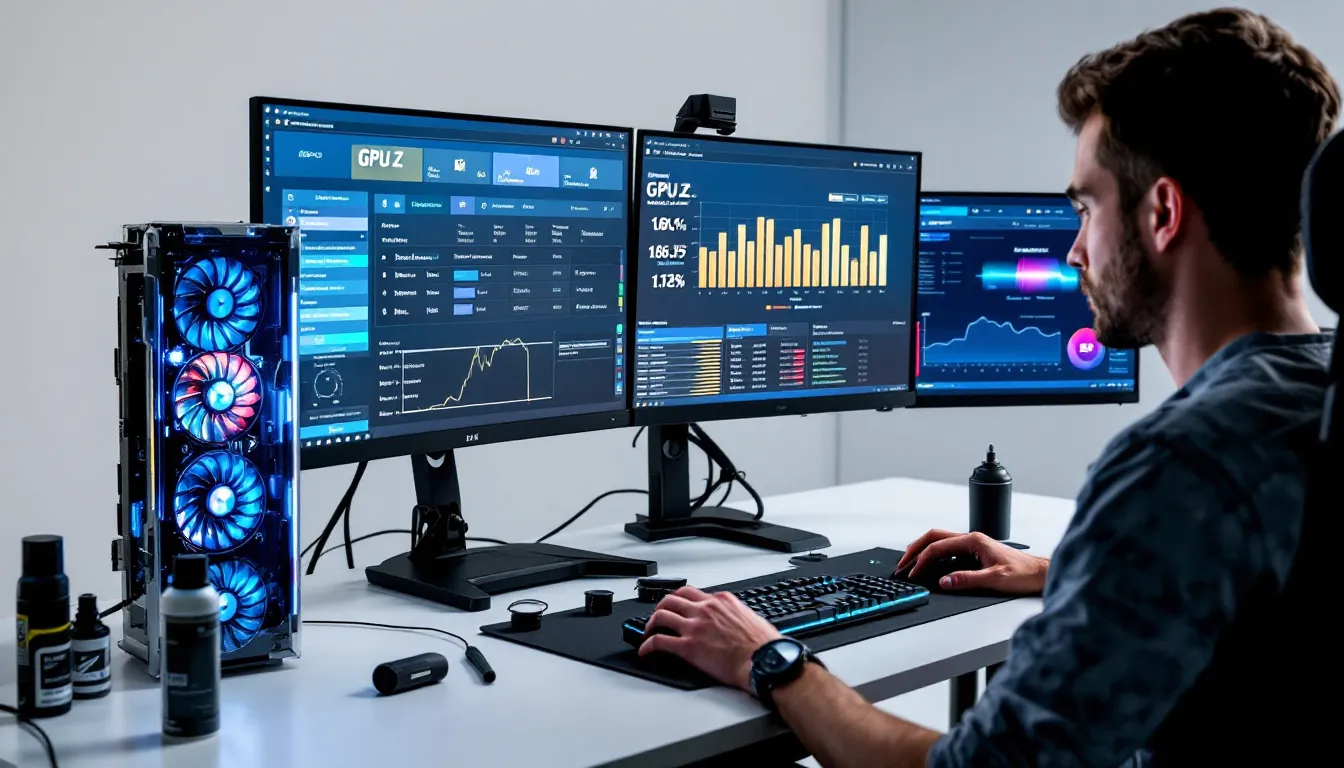
GPU-Z is the industry standard for real-time GPU monitoring. It displays core clock, memory clock, GPU load, temperatures, fan speed, power draw, and voltage in real-time. The software is free and works on both NVIDIA and AMD cards. During gaming sessions, GPU-Z running in a second monitor (or windowed/borderless mode) provides instant visibility into whether your GPU is actually hitting thermal throttles or if frame drops come from elsewhere.
Beyond GPU-Z, NVIDIA GeForce Experience and AMD Radeon Software offer built-in monitoring. NVIDIA’s overlay shows real-time FPS, GPU/VRAM usage, and power consumption. AMD’s metrics overlay provides similar data. These are lighter than third-party tools but less detailed, good for in-game checking without performance impact. Afterburner by MSI provides broader control and logging capabilities, useful for extended stress testing where you want to record data across hours of operation.
Temperature monitoring specifically demands attention. Optimal gaming temps sit 65-75°C for most modern GPUs: 75-80°C is acceptable but pushing it: above 80°C during sustained gaming is concerning. Tools like HWiNFO64 log detailed thermal data, showing not just core temperature but hotspot temperature (which can be 10-15°C higher than core average) and memory temperature on supported cards.
Stress Testing Applications Like FurMark And UNIGINE
Stress testing pushes your GPU to its absolute limits, revealing instability that casual gaming might not trigger. FurMark is the most aggressive option, running a fur-simulation scene that maxes out GPU resources. It’s specifically designed to detect memory errors and core instability. A GPU that passes 15 minutes of FurMark under 80°C is solid: failure during FurMark (graphical artifacts, crashes, or thermal shutdown) indicates hardware problems.
UNIGINE Superposition and UNIGINE Heaven offer more practical stress testing. Superposition especially uses modern graphics techniques (ray tracing, tessellation, deferred rendering) that mirror real-world gaming demands better than FurMark’s synthetic load. Running Superposition’s benchmark loop repeatedly shows whether your GPU can sustain performance or if memory errors accumulate over time.
GFXBench and FrameView provide GPU-specific benchmarking with detailed metrics on VRAM bandwidth, core throughput, and latency. These are useful for detecting performance anomalies, if your memory bandwidth is 20% below spec, something’s degraded. Platform matters here: PC stress testing tools differ from what’s available on console ecosystems, though console players can monitor GPU health indirectly through frame rate consistency and visual stability metrics.
NVIDIA And AMD Official Diagnostic Tools
NVIDIA offers NVIDIA CUDA Samples and NVIDIA FrameView, official tools that stress the GPU with controlled workloads. For serious diagnostics, NVIDIA’s FCAT (Frame Capture Analysis Tool) measures actual frame-by-frame performance variations, revealing memory latency issues that general benchmarks miss. AMD provides Radeon GPU Profiler for RDNA architecture analysis and GPU Open tools for detailed hardware interaction monitoring.
If your GPU is still under warranty, manufacturer diagnostics are crucial. NVIDIA’s official diagnostic process involves specific test sequences that validate memory, cores, and power delivery. AMD similarly has official RMA diagnostic procedures. Running these before contacting support provides documented proof of failure, accelerating replacement or repair claims. Many manufacturers now include basic diagnostics built into driver installations, check your GPU control panel for “diagnose” or “test” options.
Step-By-Step GPU Health Testing Process
Effective testing requires methodology. Random tool usage produces inconclusive results: a structured approach reveals real problems versus false alarms.
Pre-Test Preparation And Baseline Measurements
Before stress testing, gather baseline data. Run GPU-Z or HWiNFO64 during a 10-minute gaming session in a title you know well (something you play regularly where performance is consistent). Record:
- Core clock speed (should remain stable, not fluctuate wildly)
- Memory clock speed
- GPU temperature (note the highest reached)
- Power draw in watts
- Fan speed percentage
- Any visual anomalies or frame drops
Do this in a clean state: close background applications, disable overlays (Discord, streaming software), and ensure your ambient room temperature is stable. Testing on a 95°F day versus 65°F produces different results. If your room is 70°F and your GPU hits 85°C during gaming, that’s concerning: if it’s 85°F outside and the GPU hits 85°C, that’s more acceptable.
After baseline gaming, run a 5-minute session of a simple benchmark (GFXBench or the free UNIGINE Superposition demo). Again, record temperatures, clock speeds, and any glitches. This provides a reference point, if future testing shows the same card hitting significantly higher temperatures or lower clock speeds, degradation has occurred.
Update your drivers before testing. Out-of-date GPU drivers introduce artificial thermal load and can cause false instability readings. Use DDU (Display Driver Uninstaller) to cleanly remove old drivers, then install current ones. Current drivers as of 2026 are NVIDIA’s Game Ready or Studio releases (updated monthly) and AMD’s Adrenalin releases (similarly frequent).
Running Comprehensive Stress Tests
Start with a 15-minute FurMark session. Run it at your monitor’s native resolution and refresh rate. Watch for:
- Any visual artifacts (colored pixels, scanlines, distorted textures)
- Frame rate consistency (FPS should remain constant, not drop or spike)
- Thermal behavior (temperature should stabilize, not climb steadily)
- Fan behavior (fans should ramp smoothly, not fluctuate erratically)
If FurMark completes cleanly without crashes or visual issues, your core GPU hardware is likely functional. If it crashes or shows artifacts, note exactly when it happened, early crashes suggest power delivery or core problems: late-stage crashes after 10+ minutes suggest thermal or memory issues.
Next, run UNIGINE Superposition’s benchmark loop 3-4 times consecutively (each loop is ~15 minutes). This tests sustained performance and memory stability better than a single FurMark run. Memory errors often compound over time, a test that passes initially might fail on the second or third loop. Watch for:
- Consistent frame rates across loops (if the 4th loop has visibly worse performance, memory is degrading)
- Temperature stabilization (temps should plateau, not climb continuously)
- Memory error logs in the benchmark output
After stress testing, run a simple game you know for 30 minutes. If you pass FurMark and Superposition but your game stutters, the issue is software-related, not hardware failure. This distinction is critical for RMA decisions.
Monitoring Temperatures And Performance Metrics
During all testing, keep HWiNFO64 or GPU-Z logging data. Most modern testing tools auto-log metrics. Extract these logs after testing to analyze trends. Look for:
Temperature consistency: A healthy GPU’s temperature curve rises quickly (first 30 seconds) then plateaus. If temperature climbs continuously throughout a 15-minute test, thermal paste is degraded or cooling solution has failed. Temperature variations exceeding 10°C during stable load are also suspect.
Clock speed stability: Core and memory clocks should remain constant unless the GPU is actively throttling due to heat or power limits. Frequent micro-fluctuations (clock dropping 50 MHz, then recovering repeatedly) indicate power delivery issues or silicon degradation.
Power draw: Compare against NVIDIA or AMD’s official TDP (Thermal Design Power). An RTX 4080 should draw around 320W at full load: if yours draws 370W under identical load, something’s forcing higher voltage or inefficient operation. AMD’s specs are publicly available on their specification sheets.
Memory bandwidth and latency data (if your tools provide it) should match manufacturer specifications within 5%. Significant variance suggests memory degradation. Some tools like FrameView and GPU Open provide this detailed memory diagnostics, use them if you suspect VRAM problems.
Interpreting GPU Test Results And Benchmarks
Raw data means nothing without context. Understanding what results indicate is the difference between knowing your GPU is failing and actually having proof.
Temperature Thresholds For Safe GPU Operation
Temperature safety varies by GPU architecture. Modern NVIDIA cards (RTX 40-series, RTX 30-series) have a TJUNCTION max of 80-85°C, the point at which the GPU begins throttling. AMD RDNA 3 cards similarly throttle around 84°C. Reaching these limits occasionally under peak load is acceptable: staying near them continuously is not.
Safe operating ranges for gaming:
- Optimal: 60-70°C (excellent cooling, long GPU lifespan)
- Acceptable: 70-78°C (normal gaming, healthy lifespan)
- Approaching limits: 78-84°C (pushing thermal headroom, monitor closely)
- Thermal throttling: 84°C+ (GPU automatically reduces clock speeds, causing frame drops)
- Critical: 90°C+ (immediate thermal failure risk, shut down gaming)
Measurement matters too. Core temperature (reported by most tools) is typically lower than hotspot or memory temperature. If your core reads 75°C but hotspot is 90°C, you have localized thermal issues. This often indicates thermal paste degradation or poor contact between the die and heatspreader. A 15°C+ difference between core and hotspot warrants reapplication of thermal paste.
For stress testing specifically, temperatures should stabilize within 10 minutes. If heat keeps climbing, your thermal solution is inadequate. Compare your temperatures to the TechSpot GPU benchmark database, which shows baseline temperatures for different models under controlled conditions. If your temps exceed reference designs by more than 10°C, you have a cooling problem.
Memory Errors And VRAM Health Indicators
Memory errors are the silent killer of GPU longevity. NVIDIA cards have ECC (Error-Correcting Code) memory on professional cards like the A100, but gaming GPUs (GeForce/RTX) lack hardware error detection. This means memory problems manifest as visual artifacts or crashes, not error messages.
Some stress testing tools report correctable and uncorrectable memory errors. UNIGINE tools provide error counts: if you see “1 correctable error” during a benchmark, your memory is beginning to fail. One error is recoverable: 10+ errors during a single test run indicates serious VRAM degradation.
Memory bandwidth tests reveal VRAM speed degradation. Modern gaming GPUs achieve specific memory bandwidth specs: RTX 4090 = 1,008 GB/s, RX 7900 XTX = 960 GB/s. If your measured bandwidth is 10-15% below spec, a memory module has partially failed. This shows up in benchmarks as lower FPS in memory-intensive workloads compared to compute-intensive ones.
Render target anomalies (textures missing, shaders producing noise) point specifically to VRAM problems rather than core instability. Frame rate drops in memory-heavy scenes (games with large draw distances or high-res textures) alongside stable performance in compute-heavy scenes (physics, lighting) confirm memory issues. This diagnosis helps you understand whether your card is salvageable (core is fine, just needs repaste) or fundamentally damaged (VRAM is failing, likely unrepairable).
For diagnostics, run memory-specific tests. AMD provides detailed GPU analysis with memory performance metrics: NVIDIA’s FrameView similarly breaks down memory bandwidth utilization. A healthy GPU should saturate memory bandwidth during appropriate workloads without errors.
Preventive Maintenance To Extend GPU Lifespan
Testing reveals problems: maintenance prevents them. Most GPU failures trace to preventable causes: dust, thermal degradation, driver issues, or airflow problems.
Cleaning And Thermal Paste Replacement
Dust is your GPU’s worst enemy. Dust layers act as insulation, trapping heat and forcing higher fan speeds. A GPU that ran 70°C two years ago might now run 82°C under identical conditions purely from dust accumulation. Cleaning typically involves removing the GPU from the case, using compressed air to blow out dust from heatsinks and fans, and checking the thermal interface material.
Thermal paste degradation happens over 3-5 years. Paste hardens, reducing contact between the GPU core and heatspreader. This causes hotspot temperatures to climb 10-15°C without any actual change in cooling performance. Replacement involves removing the heatsink (usually 3-4 screws), carefully cleaning old paste with isopropyl alcohol and a non-abrasive cloth, applying fresh paste (a rice-grain-sized amount in the center of the core), and reseating the heatsink.
Be cautious with this process. GPU cores are delicate: too much thermal paste creates air pockets: too little leaves dry spots. Professional repaste services exist if you’re uncomfortable doing it yourself. The cost ($30-80) is worth the peace of mind and temperature improvements (5-10°C drop is common).
For most gamers, annual cleaning (compressed air blowing dust out) maintains performance. Full repaste is needed every 4-5 years unless you notice temperature creep earlier.
Optimal Cooling Solutions And Case Airflow
GPU cooling depends on case airflow more than most realize. A GPU with excellent fans performs poorly in a case with negative air pressure or blocked vents. Optimize case airflow by:
- Ensuring intake fans pull in cool air (typically front/bottom vents)
- Exhaust fans push hot air out (typically rear/top vents)
- Maintaining positive air pressure (more intake than exhaust) prevents dust infiltration
- Clearing obstructions: cables blocking vents, dust filters clogged, radiator fins covered
For air cooling, most aftermarket GPU coolers outperform stock blower fans. Models like ASUS TUF, MSI Gaming X, or EVGA XC series provide better cooling for 10-15°C lower temperatures than reference designs. Liquid cooling (All-in-One or custom loops) achieves even better results but requires more maintenance and carries small leak risks.
Undervolting is an underrated cooling optimization. Reducing GPU voltage by 25-50mV (using tools like MSI Afterburner) decreases power draw and heat without sacrificing much performance. An undervolted GPU might run 5-10°C cooler while maintaining 99% of gaming FPS. This is non-destructive and easily reversible, making it the safest performance optimization.
Driver Updates And Software Optimization
Driver updates matter more than most gamers realize. Outdated drivers cause:
- Artificial thermal load (inefficient power delivery, causing unnecessary heat)
- Memory leaks (unused VRAM accumulates, forcing higher clock speeds)
- Compatibility issues (games using newer graphics features run slower)
- Security vulnerabilities (especially relevant for multi-player gaming)
Keep drivers updated monthly. NVIDIA releases “Game Ready” drivers monthly (optimized for new game releases) and “Studio” drivers monthly (optimized for creative applications). AMD’s Adrenalin updates match this cadence. Automatic driver update features in GeForce Experience and Radeon Software handle this, but manual updates ensure you’re always current.
In-game settings heavily impact GPU health. Ultra settings at 4K generate more heat than high settings at 1440p. If your GPU is aging or running hot, tuning graphics settings prevents pushing it to thermal limits. Games like Cyberpunk 2077 or Alan Wake 2 can push aging GPUs to 90°C+: dialing back ray tracing or resolution maintains safe operating temperatures while preserving playable frame rates.
VSync and frame rate caps are often overlooked thermal tools. Uncapped frame rates during loading screens (where gameplay isn’t critical) waste power and generate unnecessary heat. Setting a 120 FPS cap in non-competitive games prevents pointless thermal stress. This seems minor but compounds across thousands of gaming hours, lower average temperatures directly extend GPU lifespan.
Common GPU Health Testing Mistakes To Avoid
Even experienced gamers make testing errors that lead to false conclusions or data damage.
Not establishing baselines is the most common mistake. Testing once doesn’t reveal degradation: comparing results across months reveals trends. Establish baseline temperatures, clock speeds, and benchmark scores early in your GPU’s life, then repeat testing quarterly to spot slow decline versus sudden failure.
Over-trusting FurMark results trips up many enthusiasts. FurMark is so aggressive that it can cause false positives, a GPU might crash under FurMark’s unrealistic load but run perfectly stable in games. Use FurMark as a first-pass stability check, but verify with real-world gaming and UNIGINE benchmarks before declaring failure.
Ignoring ambient temperature skews comparisons. Testing on a 95°F summer day versus a 65°F winter day produces 10-15°C temperature differences. If you’re tracking trends, test in similar ambient conditions or account for seasonal differences. Your GPU isn’t failing: your room is just warmer.
Running stress tests with poor airflow creates artificial thermal issues. Close a case side panel during stress testing, and temperatures spike. Open it, and they normalize. This isn’t GPU failure: it’s environmental. Perform testing with your normal gaming setup: case fully assembled, same intake/exhaust fans you normally use.
Conflating power throttling with thermal throttling causes incorrect diagnosis. If your GPU clock drops mid-test, check temperature first. If temps are 70°C and clocks dropped, you likely hit the power limit (GPU is drawing maximum allowed power), not the thermal limit. Check NVIDIA or AMD power limit settings: increasing the power limit (within reason) might stabilize clocks.
Testing with unstable overclocks produces unreliable results. If you’re testing GPU stability with an aggressive overclock and it fails, that doesn’t mean the GPU is broken, it means your overclock is too aggressive. Reset to stock clocks before diagnostic testing. Overclocking is for performance enthusiasts: health testing should use stock settings.
Not updating drivers before testing introduces noise. Old drivers often run inefficiently, generating unnecessary heat and causing false thermal throttling. Always update to the latest driver before health testing. This single step eliminates most false positives. Tom’s Hardware’s GPU benchmark guide emphasizes driver freshness as critical for accurate testing results.
Ignoring memory temperature on supported cards misses early VRAM failures. Some GPUs report separate memory temperature: if core is 75°C but memory is 95°C, VRAM is in trouble. Tools like HWiNFO show this: GPU-Z doesn’t on older versions. Use tools that report memory temps specifically.
When To Consider GPU Replacement Or Professional Repair
Not all GPU problems justify replacement. Knowing when to repair versus replace is a practical decision based on failure type and economic value.
Clear GPU failure cases:
- Complete non-detection (GPU doesn’t appear in Device Manager or BIOS)
- Permanent visual artifacts under light load (even menu screens show corruption)
- Consistent crashes during any stress test
- Power delivery failure (GPU dies immediately on power-up)
These indicate core hardware damage that’s typically unrepairable. If your GPU is under 18 months old, RMA through the manufacturer (ASUS, MSI, EVGA, etc.) to replace it. Document your testing: provide logs from FurMark and UNIGINE showing when crashes occurred, temperature readings, and system specs. Manufacturers use this to validate warranty claims.
Repairable issues:
- Thermal problems (cleaning, repaste, better cooling solve this)
- Memory errors in one VRAM module (possible to disable that module in some cases, but limits performance)
- Fan failure (fans can be replaced independently if they’re modular: ~$30-50)
- Power delivery problems localized to specific capacitors (professional board-level repair can fix this)
Professional GPU repair services exist but are expensive. A quality repair costs $100-300, which is only justified if your GPU is high-end (RTX 4090, RX 7900 XTX) and still has warranty or you can’t afford replacement. Most mid-range and budget GPUs are more cost-effective to replace.
Deciding between repair and replacement: Compare the repair cost plus shipping to the current resale value of your GPU. An RTX 4070 with thermal failure might cost $120 to repair but is worth $350-450 used, making repair economical. An RTX 3060 with the same issue might cost $100 to repair but is worth $200 used, making replacement a better investment.
Age also matters. A GPU that’s 4+ years old and failing probably isn’t worth fixing unless it’s extremely high-end. Newer replacement cards offer significant performance gains plus new features and warranty coverage. A failing RTX 2080 Ti (2018) losing value quickly: upgrading to an RTX 4070 (2023) gains you 40-50% performance increase plus 3+ years of warranty.
For competitive esports players, reliability matters more than cost-efficiency. If your GPU fails during qualifiers, the psychological impact and missed opportunities outweigh the repair cost. Consider a backup GPU if you play competitively: having a secondary card as insurance is cheap insurance against performance-critical failures.
Conclusion
GPU health monitoring transforms from obscure technical practice to essential maintenance. With graphics cards commanding significant investments, proactive testing protects that investment while preventing frustrating mid-game failures.
The practical process boils down to three elements: regular baseline testing (monthly or quarterly), thermal monitoring during normal gaming (GPU-Z or built-in overlays), and comprehensive stress testing when you suspect problems (FurMark + UNIGINE). Temperatures, clock stability, and visual integrity tell the story. Acting on these signals, replacing thermal paste, cleaning dust, updating drivers, or upgrading cooling, extends GPU lifespan and maintains peak gaming performance.
The best time to test GPU health is before you need to, not after your display fills with artifacts. Integrate basic monitoring into your gaming setup now, establish your GPU’s normal operating parameters, and you’ll catch degradation early enough to matter. In a landscape where gaming hardware keeps advancing, keeping your existing GPU healthy bridges the gap between today’s performance and tomorrow’s upgrade.