
Your graphics card is one of the most expensive and critical components in your gaming rig, yet many gamers have no idea if it’s actually performing at full capacity or hiding silently degrading performance. Whether you’re pushing a fresh RTX 5090 to its limits, validating a used GPU purchase, or simply verifying your system’s stability before a major tournament, knowing how to stress test your GPU is essential. A proper GPU health test isn’t just for overclocking enthusiasts, it’s a practical diagnostic tool that catches hardware defects, thermal issues, and driver problems before they ruin your gameplay or corrupt your data. This guide walks you through everything you need to know about GPU stress testing, from the tools you’ll need to the exact steps for running comprehensive tests that reveal exactly what your hardware is capable of handling.
Key Takeaways
- Stress test your GPU to detect hidden hardware defects, thermal issues, and driver problems before they cause gameplay crashes or data corruption.
- Use specialized benchmarking tools like 3DMark, Unigine Superposition, or MemTest GPU for reliable stress testing, as they provide repeatable results and clear pass/fail diagnostics.
- Start with short 15-30 minute tests at factory settings to establish a baseline, then progress to extended 1-8 hour tests if you’re overclocking or validating a used GPU.
- Monitor real-time GPU metrics including clock speeds, temperature, power draw, and fan speeds using MSI Afterburner or HWiNFO64 to identify throttling, crashes, or instability patterns.
- Maintain safe operating temperatures (75-80°C for gaming, 82-85°C maximum during stress testing) and verify your power supply can handle peak GPU+CPU power draw to prevent hardware damage.
- When stress testing reveals crashes or artifacts, systematically troubleshoot by checking drivers first, then thermal solutions, then overclocking settings to isolate the root cause.
Why You Should Stress Test Your Graphics Card
Detecting Hardware Issues Before They Cause Problems
A faulty GPU doesn’t always announce itself with immediate crashes. Sometimes it silvers along quietly, introducing subtle artifacts, micro-stutters, or memory corruption that take hours to surface. By running a systematic GPU stress test, you’re essentially running a diagnostic that forces your card to work under maximum load, exactly the conditions where hidden defects reveal themselves. If your memory modules have degraded, if a VRAM chip is dying, or if solder joints are compromised, a stress test lasting 30 minutes to several hours will expose these problems immediately rather than letting them surprise you in a ranked match.


This early detection matters because hardware failures are often catastrophic once they start. A card that passes a 12-hour stress test without artifacts is significantly more likely to remain stable for months or years of normal gaming.
Validating Overclocking Performance
If you’re running a factory overclock from your board partner, a custom overclocking profile, or even just tweaking power limits, you need proof that your changes are actually stable. Overclocking might seem stable during casual gaming, your frame rates look smooth, nothing crashes, but the real test comes when every part of the GPU is hammered simultaneously under extreme conditions. This is where tools that enable you to stress your GPU really earn their value. A CPU GPU stress test that loads both your processor and graphics card is especially useful for finding stability thresholds that casual gaming simply won’t expose.
Finding that sweet spot between performance gains and stability requires data. You can’t trust stability claims on third-party apps or guesses based on theoretical calculations. Only real-world stress testing under controlled conditions gives you the confidence to apply permanent changes to your BIOS or driver settings.
Monitoring Thermals and Power Consumption
Stress testing your GPU isn’t just about finding failure points, it’s about understanding how your cooling solution actually performs under worst-case scenarios. Your target frame rate during gaming might be 144 FPS, but during a stress test, your card could be rendering at 500+ FPS, creating heat loads that never happen in any real game. This tells you your actual thermal ceiling and whether your case airflow, fans, or liquid cooling are truly adequate.
You’ll also learn exactly how much power your GPU draws at maximum load. If you’re running a 1200W PSU with a power-hungry GPU, a stress test might reveal that your total system power draw during gaming could spike dangerously close to your PSU’s rated limit, information that could have prevented an unexpected shutdown during a tournament.
Essential Tools for GPU Stress Testing
Specialized Benchmarking Software
The gold standard for isolated GPU testing is 3DMark (particularly the Time Spy and Fire Strike benchmarks), which has been the industry standard for over a decade. 3DMark runs predetermined graphics workloads that stress your GPU’s rendering pipeline, memory, and compute capabilities in ways that are repeatable and comparable across hardware. The benchmark scores are also useful for verifying your card’s baseline performance before and after changes.
GFXBench offers another trusted approach, especially useful for testing across different graphics APIs (DirectX, Vulkan, OpenGL). For a more brutal approach, Unigine Superposition and Unigine Valley are specifically designed as stress tests, they’re graphically demanding and will push your GPU harder than most 3DMark runs. These tools give you clear pass/fail results: if your GPU can handle a full Superposition run at Ultra settings without artifacts or crashes, you’ve got a stable card.
MemTest GPU (formerly GFXMem) specifically targets your graphics memory, running thousands of read-write cycles to catch VRAM defects that might not show up in general-purpose rendering tests. If you’re stress testing a used card or hunting for intermittent stability issues, dedicated memory tests are invaluable.
Popular Gaming-Based Stress Tests
Some gamers prefer testing with actual games because that’s the real-world scenario you care about. Running something graphically demanding, Cyberpunk 2077 at maximum settings with ray tracing, Unreal Engine 5 tech demos like Nanite and Lumen showcases, or A Plague Tale: Requiem, pushes your GPU through variable load cycles that are arguably more realistic than synthetic benchmarks. The advantage is that if your system can handle a two-hour Cyberpunk session maxed out, you know it’ll handle any game you throw at it.
Game-based testing does have a downside: you can’t isolate the GPU easily, and crashes might be driver-related rather than hardware-related. For pure GPU health diagnostics, synthetic benchmarks are more reliable.
Advanced Monitoring and Logging Tools
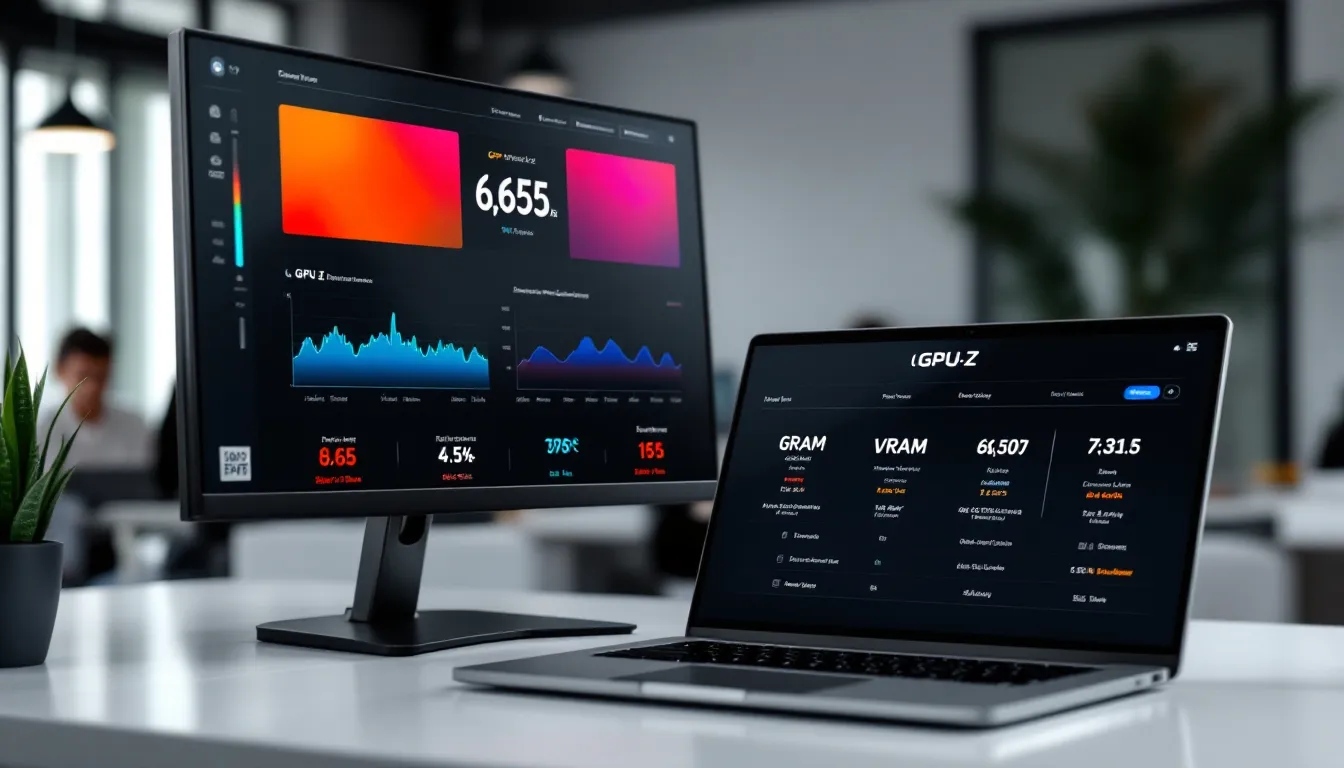
MSI Afterburner is essential for any serious GPU testing. It provides real-time monitoring of clock speeds, memory clocks, temperatures, power draw, and fan speeds. More importantly, it logs all this data so you can review thermal and power trends after your test concludes. GPU-Z is lighter and focuses on detailed GPU information and memory validation. HWiNFO64 is perhaps the most comprehensive, displaying hundreds of metrics with logging capabilities.
These monitoring tools transform raw stress testing into data-driven diagnostics. You’re not just watching temperatures during a test, you’re recording them so you can spot thermal throttling events, power anomalies, or clock drops that might occur at specific moments during the load cycle.
Step-by-Step GPU Stress Testing Process
Preparation and Baseline Settings
Before you run anything demanding, establish your baseline. Boot into Windows with no overclocks applied, all GPU clocks and power limits at factory defaults. Let your system sit idle for five minutes, then check your GPU’s idle temperature and clock speed using GPU-Z or MSI Afterburner. This tells you if you’re starting from a thermally and electrically clean state.
Next, verify your driver version. Use NVIDIA GeForce Experience or AMD Radeon Software to ensure you’re on the latest stable driver. Outdated drivers can cause artificial instability during testing, giving you false negatives. Similarly, close background applications, Discord, OBS, browsers, anything that might use GPU resources, so the stress test has complete control and visibility of your GPU’s behavior.
Finally, decide on your test duration and success criteria. A short 15-minute test might catch immediate failures, but a 30-minute to 2-hour test is more reliable for validating stability. Set a target maximum temperature (usually 80°C for newer cards under full load is reasonable, though some can handle 85°C safely). Document these settings before starting.
Running Your First Stress Test
Start with 3DMark Time Spy or Unigine Superposition in balanced mode rather than extreme mode. Let it run for at least two full passes without interruption. Watch in real-time using MSI Afterburner, keep tabs on temperatures, clock speeds, and any fan speed spikes. Your GPU’s clocks should remain stable and consistent throughout the test. If you see the clock speed dropping and recovering repeatedly, that suggests thermal throttling or power limit throttling.
If the test completes without crashing, displaying artifacts, or hitting your temperature ceiling, you’ve passed the baseline stability check. If you experience a crash or artifact corruption, write down exactly when it happened and what the GPU clock, temperature, and power readings were at that moment. This data is crucial for diagnosis.
After the initial run, move to a longer test. Run Unigine Valley or Superposition on the highest settings your card can handle without crashing. Aim for at least one hour of uninterrupted run time. If it completes without incident, your GPU is likely stable under extreme conditions. Many overclockers use Prime95 or MemTest86 focused on GPU memory to stress memory subsystems specifically, though this requires additional setup beyond basic GPU testing.
Interpreting Results and Identifying Failures
A successful stress test means no crashes, no artifacts, and temperatures remaining below your safety threshold. Clock speeds should stay consistent or increase slightly under load without unexpected drops. Power consumption should match the expected TDP of your card, an RTX 5090, for instance, should draw close to its 575W TDP under full synthetic load.
If your GPU crashes during a test, note the exact error. A sudden freeze or black screen usually indicates hardware failure or insufficient power delivery. Visual artifacts, colored pixels, flickering polygons, or texture corruption, suggest VRAM degradation or GPU core instability. If the entire system restarts without warning, suspect a power supply issue or driver crash.
Partial failures are the trickiest. Maybe your GPU crashes after 47 minutes of a one-hour test. This hints at thermal time-bomb behavior, the card is okay initially but degrades under sustained heat. Your cooling solution might need upgrading, or you might be overclocked too aggressively. Rerun the test, but this time drop your clock speed or power limit by 50 MHz and try again. Keep iterating downward until you find the stability ceiling.
Common GPU Stress Testing Scenarios
Short-Term Stability Tests
If you just bought a new GPU or applied minor tweaks, a quick 15-30 minute benchmark run using 3DMark or a single loop of Superposition is sufficient to verify basic stability. This catches obviously broken hardware or driver incompatibilities without burning significant time. Many enthusiasts do this as a sanity check after every setting change.
Short tests are also practical when diagnosing specific problems. If you’re testing whether a new driver version resolves crashes, a 20-minute Superposition run is enough to establish whether the problem persists. Short-term testing is fast-moving and lets you iterate quickly through potential solutions.
Extended Burn-In Testing
When you’re validating a used GPU purchase, overclocking for competition, or stress testing after a repair, extended testing is non-negotiable. Many pros run 4-8 hour continuous stress tests using Unigine Superposition or similar tools. Some even run 24-hour tests to catch intermittent failures that only emerge after the card has been at full temperature for extended periods.
Extended testing requires discipline, you can’t babysit the screen for hours. Set up logging in MSI Afterburner or HWiNFO64, let the benchmark run on a secondary display or fully minimized, and check back periodically. If anything crashes, you’ll have logged data showing exactly what the GPU was doing the moment failure occurred.
Real-World Gaming Stress Tests
Some gamers skip synthetic benchmarks entirely and instead stress test with demanding AAA titles. Running Cyberpunk 2077 maxed at 4K with ray tracing for two hours, or cycling through demanding scenes in Starfield, Dragon’s Dogma 2, or Alan Wake 2 creates variable load conditions that synthetic tests can’t replicate. GPUs handle sustained 100% load differently than they handle the fluctuating loads of games, where demanding scenes alternate with lighter scenes.
For validating overclocks intended for gaming, real-world testing is arguably more valuable than synthetic benchmarks. If your overclocked GPU doesn’t crash in Cyberpunk 4K, you’re confident it won’t crash in any game you play. The downside is that gaming tests are longer, less repeatable, and harder to diagnose when failures occur, you won’t have clean benchmark logs to analyze.
Safety Precautions and Best Practices
Temperature Limits and Thermal Management
GPUs have hard thermal limits. NVIDIA and AMD cards throttle clock speeds automatically once they hit around 84-87°C to prevent damage. But, that throttling is a sign your cooling solution is inadequate for your target performance, and sustained throttling can shorten component lifespan. Before stress testing, establish your safe temperature ceiling, typically 75-80°C for daily gaming, though stress testing can push to 82-85°C if your cooling is exceptional.
If your GPU hits its thermal limit during testing, stop immediately. Let it cool to room temperature (could take 30+ minutes), then investigate. Your case might have poor airflow, your GPU fans might need cleaning of dust buildup, or your thermal pads might need replacement. Never stress test a GPU that’s already thermally throttling, you’re not testing stability: you’re testing thermal limits, and that’s a different problem.
Keep your testing environment room-temperature stable. Running stress tests in a hot garage in summer gives different thermal results than running in a climate-controlled gaming room. Document the ambient temperature during tests so you can compare results fairly.
Power Supply Considerations
Your power supply is part of the GPU stress equation. A weak or aging PSU might be stable under gaming loads but fail under sustained synthetic loads that draw maximum power from both GPU and CPU simultaneously. Before stress testing, verify your PSU’s actual wattage and do the math: if you have a 1000W PSU and your CPU+GPU can draw 900W combined, you’re right at the edge, and any power spikes will cause shutdowns.
If your system randomly restarts during stress testing, without any blue screen or error message, just a hard reboot, suspect your PSU first. Try testing with a different power supply if possible, or reduce your GPU power limit to lower peak power draw. Many PSUs degrade over time (capacitors have finite lifespan), so an older PSU might be failing even if it’s rated for your system.
Preventing Hardware Damage
The biggest risk during stress testing is pushing too hard, too fast. Never stress test a GPU without monitoring. Never apply aggressive overclocks and immediately jump to an 8-hour stress test. Instead, use the incremental approach: run a short test, monitor results, make small adjustments, test again. Pushing 200 MHz over factory clocks in a single jump can destroy your GPU in minutes. Incremental changes of 25-50 MHz with testing between each step take longer but prevent catastrophic failures.
Always keep fans at healthy speeds. If you’re pushing your GPU hard, ensure fans ramp up appropriately. Check your cooling solution’s performance before testing, your liquid cooling pump should be running (verify with a pump RPM sensor), fans should be spinning freely, and there should be no leaks. A failed pump during a stress test will thermally destroy your GPU in seconds.
Know your hardware’s limits. Older GPUs (GTX 1080 or older, Radeon RX 480) often can’t tolerate extended stress testing without degradation. Newer architecture cards are generally more robust, but always respect your specific card’s TDP and thermal rating. A used GPU might have pre-existing damage you can’t see, stress testing at moderate levels first (not maximum settings) helps you assess its condition before pushing further.
Troubleshooting Failed Stress Tests
Crashes, Artifacts, and Driver Issues
If your GPU crashes during stress testing, start by identifying the crash pattern. Did it fail immediately (within 30 seconds)? That usually means hardware failure or severe driver incompatibility. Did it fail after 45 minutes? That suggests thermal degradation or a borderline overclocking setting. This timing information is your first diagnostic clue.
Next, verify your driver. Uninstall your current GPU driver using DDU (Display Driver Uninstaller) in Safe Mode, then install the latest stable driver fresh. Many GPU instability issues are actually driver-related, a bad driver update can cause crashes that feel like hardware problems. Recent instability after a driver update? Rolling back is a valid troubleshooting step.
If artifacts appear, colored pixels, texture glitches, or flickering, your GPU memory is likely involved. Run a dedicated VRAM test like MemTest GPU or use the memory test function in GFXBench. Artifacts during 3DMark but not during gaming might indicate an overclocking issue: try running at factory clocks. If artifacts persist regardless of clock settings, your memory chips or memory controller are likely degrading, and the card may need GPU benchmarks and testing to establish failure severity.
For blue screens or system crashes (not just GPU resets), suspect driver conflicts or VRAM corruption. Update your motherboard BIOS, check for conflicting background software, and isolate the GPU by disabling integrated graphics in BIOS. In rare cases, a GPU firmware update might be available from your board partner (EVGA, MSI, ASUS), check their support pages.
Addressing Thermal Throttling
Thermal throttling during stress testing is different from failure, it’s your cooling solution saying “I can’t keep up.” You’ll notice clock speeds dropping automatically, temperatures hitting 82-87°C, and benchmark scores tanking partway through the run. This is normal safety behavior, but it also means you need to address cooling before pushing performance further.
First, clean your GPU’s fans and heatsink using compressed air. Dust buildup that’s invisible to the eye can reduce cooling by 10-15°C. Check that case fans are oriented correctly (intake in front, exhaust in back) and that your case isn’t blocked by walls or other obstacles. If thermal throttling persists after cleaning, your thermal paste might have dried out (especially on older cards). Reapplying quality thermal paste between the GPU die and heatsink can drop temperatures by 5-10°C, though this requires disassembly and voids warranties.
Alternatively, improve case airflow by adding more fans, removing dust filters (if temps are a bigger issue than dust), or switching to a case with better ventilation. For liquid cooling, verify your pump is running (check pump header voltage in BIOS), check for leaks, and ensure your radiator fans are spinning. A silent pump failure is a common reason for sudden thermal throttling that wasn’t present before.
If you’re overclocked, thermal throttling is your signal to back off the clock speed. Drop your GPU core clock by 100 MHz and test again. Keep reducing until throttling stops. High temperatures + throttling = your current settings are too aggressive for your cooling solution, even if the GPU itself is capable of handling the clocks under better cooling.
Conclusion
Learning how to stress test your GPU transforms you from someone who hopes their hardware is stable into someone who knows. Whether you’re validating a new purchase, pushing your overclock, or diagnosing a problem, GPU stress testing gives you certainty. The process isn’t complicated, download a benchmarking tool, set up monitoring, and let your GPU work. What matters is understanding what you’re looking for: stable clock speeds, temperatures within safe limits, zero artifacts, and a complete run without crashes.
Start conservatively. Run a 30-minute benchmark at factory settings. If it passes, you’ve established your baseline. If it fails, you’ve caught a hardware problem early. Then, if you’re overclocking, test incrementally, small adjustments followed by validation. If you’re diagnosing issues, methodically work through driver updates, thermal solutions, and power delivery.
The specifics matter to gamers. You need exact temperatures, exact clock speeds, exact frame rates, and exact patch versions to make informed decisions. Stress testing your GPU gives you that precision. In 2026, with GPUs costing $400-$2000, taking an hour to validate stability isn’t optional, it’s essential maintenance. Test deliberately, monitor carefully, and you’ll keep your hardware running at peak performance for years.